Networking Fundamentals for Beginners: IP, DNS & TCP/IPNetworking Fundamentals for Beginners: IP Address, DNS, TCP/IP and More - Solitaire Infosystems
Request a Quote !

Request a Quote !

Request a Quote !

Blogs

Networking Fundamentals for Beginners: IP Address, DNS, TCP/IP and More

  • By: admin
  • date: Sep 28, 2026
Blog Image

Every time you open a website, send a WhatsApp message or join an online class, dozens of networking steps happen in less than a second. Your device finds an address, asks for directions, opens a connection and receives data from a server that may be thousands of kilometres away.

This guide covers networking fundamentals for beginners in plain language. You will learn what IP addresses, DNS, TCP/IP, routers, switches and ports actually do, see real examples you can test on your own computer, and get a step-by-step learning roadmap. No prior experience is needed.


Quick Answer: What Should Beginners Learn First?

Start with these six topics, in this order:

1. IP addressing — how every device gets an address

2. DNS — how website names become IP addresses

3. TCP/IP model — how data is packaged and delivered

4. Routers and switches — how networks are connected

5. Ports and protocols — how the right application receives data

6. Basic troubleshooting — ping, traceroute, ipconfig and nslookup


Why Should Beginners Learn Networking?

Almost every IT role depends on networking. A developer deploying an app, a system administrator managing servers, a cloud engineer configuring AWS or Azure, and a cybersecurity analyst investigating an attack all need to understand how devices communicate.

Learning networking fundamentals helps you:

  • Troubleshoot confidently — fix “no internet” and “site not loading” problems instead of guessing.
  • Understand how the web works — from typing a URL to a page appearing on screen.
  • Build a base for cybersecurity — attacks and defences both happen over networks.
  • Work with cloud and servers — virtual networks, firewalls and load balancers use the same concepts.
  • Prepare for certifications — such as CompTIA Network+ and Cisco CCNA.
  • Stand out in interviews — networking questions are common in IT, support and DevOps roles.


7 Essential Networking Concepts Every Beginner Should Know

IP Address: The Address of Every Device

An IP (Internet Protocol) address is a unique number that identifies a device on a network, much like a house address tells a courier where to deliver a parcel. Without it, data would not know where to go.

Example: 192.168.1.10 is a typical IPv4 address you might see on a home or office laptop.


Concept What It Means Example
IPv4 32-bit address, about 4.3 billion possible addresses 192.168.1.10
IPv6 128-bit address, created because IPv4 addresses were running out 2001:db8::1
Private IP Used inside a local network, not reachable directly from the internet 10.x.x.x, 172.16–31.x.x, 192.168.x.x
Public IP Assigned by your internet provider, identifies your network online Varies by ISP
Static IP Fixed address set manually — common for servers and printers A company web server
Dynamic IP Assigned automatically by DHCP and may change Your phone on Wi-Fi


Also learn: a MAC address is a permanent hardware ID burned into a network card (e.g. 00:1A:2B:3C:4D:5E). The IP address can change; the MAC address normally does not. Beginners often confuse the two.

DNS: The Internet’s Phonebook

DNS (Domain Name System) converts human-friendly names like example.com into IP addresses that computers use. People remember names; computers need numbers. DNS connects the two.

When you type a website name, your device asks a DNS resolver, “What is the IP address of this domain?” The resolver finds the answer and returns it, usually in milliseconds.

Common DNS record types every beginner should recognise:


Record Purpose
A Maps a domain to an IPv4 address
AAAA Maps a domain to an IPv6 address
CNAME Points one domain name to another (an alias)
MX Tells the internet which server handles email for a domain
TXT Stores text used for verification and email security (SPF, DKIM)


Real-world tip: when a website works on mobile data but not on office Wi-Fi, a DNS problem is often the cause.


TCP/IP: The Rules of Internet Communication

TCP/IP is the set of protocols that powers the internet. It breaks data into small packets, addresses them, sends them across networks and reassembles them at the destination. It is usually explained as a four-layer model:


Layer Job Examples
Application Services that users and apps interact with HTTP, HTTPS, DNS, SMTP, SSH
Transport Manages delivery between applications TCP, UDP
Internet Addresses and routes packets between networks IP, ICMP
Network Access (Link) Moves data over the physical medium Ethernet, Wi-Fi


Two transport protocols you must know:


Feature TCP UDP
Connection Connection-based (3-way handshake) Connectionless
Reliability Guarantees delivery and correct order No delivery guarantee
Speed Slower due to checks Faster, lower overhead
Used for Websites, email, file transfer Video calls, live streaming, online gaming, DNS queries


TCP three-way handshake: before sending data, the client and server exchange SYN → SYN-ACK → ACK to agree that a connection is open.


Routers and Switches: Connecting Devices and Networks

Routers and switches are often confused, but they do different jobs:

  • Switch — connects devices within the same network (e.g. computers in one lab) and forwards data using MAC addresses.
  • Router — connects different networks (e.g. your office network to the internet) and chooses the best path using IP addresses.

Simple analogy: a switch is like the corridor inside a building that connects rooms; a router is like the main gate that connects the building to the city’s roads. Your home Wi-Fi box usually combines a router, a switch and a wireless access point in one device.


Ports and Protocols: Reaching the Right Application

If an IP address identifies a building, a port identifies the exact room. One server can run a website, email and remote access at the same time; ports make sure each request reaches the correct service.


Device → IP Address → Port → Service

Port Protocol Used For
20/21 FTP File transfer
22 SSH Secure remote login to servers
25 SMTP Sending email
53 DNS Domain name lookups
67/68 DHCP Automatic IP address assignment
80 HTTP Unencrypted web traffic
443 HTTPS Secure (encrypted) web traffic
3389 RDP Windows Remote Desktop


Memorising these common ports is one of the fastest ways to get comfortable with troubleshooting and firewall rules.


HTTP and HTTPS: How Browsers Talk to Servers

HTTP (HyperText Transfer Protocol) is how your browser requests web pages from a server. HTTPS adds encryption using TLS, so passwords, payment details and personal data cannot be read if intercepted.

The padlock icon in your browser’s address bar shows that a site uses HTTPS. Today, HTTPS is standard for any trustworthy website and is also a ranking signal for search engines.


Network Security Basics

Networking and security go hand in hand. A misconfigured network can expose data, devices and users to attack. Beginners should understand these core defences:

  • Firewalls — allow or block traffic based on rules (IP, port, protocol).
  • Strong passwords and MFA — protect routers, servers and accounts.
  • Access control — give users only the access they need.
  • Encryption — protect data in transit (HTTPS, VPN) and at rest.
  • Network monitoring — watch for unusual traffic or unknown devices.
  • Secure Wi-Fi — use WPA2/WPA3 and change default router credentials.

Treat security as part of network design from day one, not as an afterthought.


How Does Data Travel Across a Network? (Step by Step)

Here is what happens in about a second when you open a website in your browser:

  1. You enter a URL — for example, a training institute’s website.
  2. DNS lookup — your device asks a DNS resolver for the site’s IP address.
  3. TCP connection — your device and the server complete the SYN, SYN-ACK, ACK handshake.
  4. TLS handshake — for HTTPS, both sides agree on encryption keys.
  5. HTTP request — your browser asks the server for the page.
  6. Routing — packets pass through your router, your ISP and several internet routers.
  7. Server response — the server sends back HTML, images and scripts.
  8. Page loads — your browser reassembles the packets and displays the page.

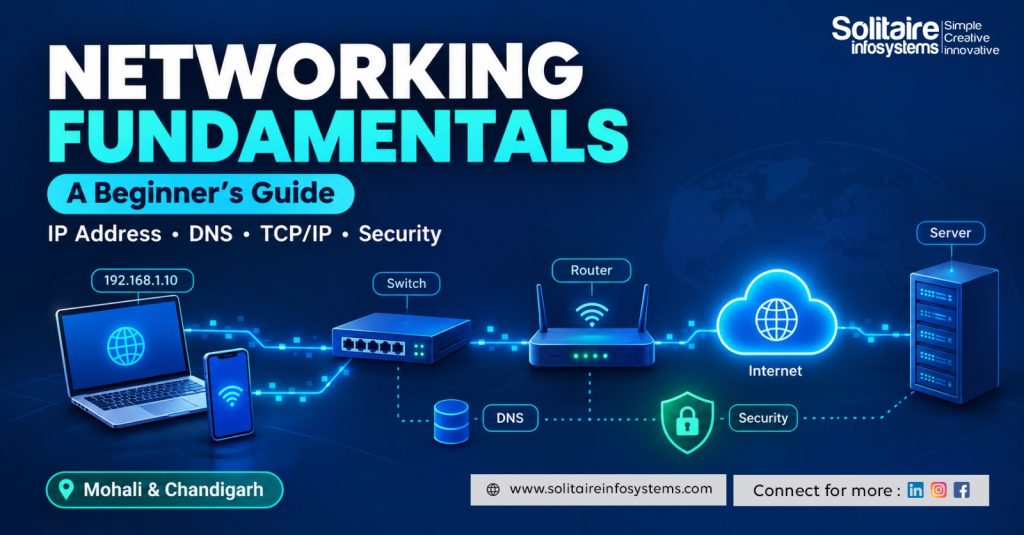
User Device → DNS → Router → Internet → Server → Response → User Device

Once you understand this flow, concepts like DNS, IP addressing, ports and routing stop feeling separate and start making sense together.


Networking Commands Beginners Can Practise Today

You don’t need expensive equipment to start. Open Command Prompt (Windows) or Terminal (Linux/macOS) and try these commands:


Command Windows / Linux What It Shows
ping ping google.com Whether a host is reachable and how fast it responds
traceroute tracert (Windows) / traceroute (Linux) Each router hop between you and the destination
IP configuration ipconfig (Windows) / ip a (Linux) Your IP address, subnet mask and gateway
nslookup nslookup example.com The IP address that DNS returns for a domain
netstat netstat -an Active connections and listening ports


Wireshark is a free protocol analyser that lets you see packets in real time. It is excellent for understanding TCP handshakes and DNS queries — but always use it on your own network or an authorised lab.


Try This 5-Minute Exercise

1. Run ipconfig (or ip a) and note your IP address and default gateway.

2. Run ping on your gateway, then on a website. Compare the response times.

3. Run nslookup on the same website to see its IP address.

4. Run tracert / traceroute and count how many hops it takes to reach the site.

You have just tested IP addressing, routing and DNS on a real network.


Subnetting Basics: A Quick Introduction

Subnetting divides a large network into smaller, more manageable parts. It improves organisation, performance and security. It is also one of the topics beginners skip most often — and later regret.

Example: the network 192.168.1.0/24 has a subnet mask of 255.255.255.0. It contains 256 addresses, of which 254 are usable for devices (one is the network address and one is the broadcast address).

Start by understanding CIDR notation (/24, /25, /26) and practise calculating usable hosts. With a little practice, subnetting becomes quick and logical.


Practical Networking Skills Students Should Develop

Reading theory is only the first step. Hands-on practice is what builds real understanding and job-ready confidence:

  • Set up a small local network with two or more devices.
  • Assign static and dynamic IP addresses and check the difference.
  • Test connectivity between devices using ping.
  • Trace DNS resolution for different websites.
  • Identify open ports and the services using them.
  • Draw network diagrams showing devices, IPs and connections.
  • Build virtual labs using Cisco Packet Tracer or GNS3.
  • Capture and read traffic in Wireshark in a controlled lab.

Pro tip: keep a troubleshooting journal. For every problem, write down the symptom, what you checked, the cause and the fix. This habit mirrors how professional network engineers work and makes great interview material.


Common Networking Mistakes Beginners Should Avoid

  • Memorising without understanding — learn why a concept exists, not just its definition.
  • Confusing IP and MAC addresses — IP is logical and can change; MAC is a hardware identifier.
  • Skipping subnetting — it appears in almost every networking interview and certification.
  • Changing settings blindly — always note the original configuration before editing.
  • Testing systems without permission — scanning networks you don’t own can be illegal.
  • Avoiding hands-on practice — commands and labs teach more than slides.
  • Jumping to advanced security too early — ethical hacking makes sense only after networking basics.

A Simple 6-Week Networking Learning Roadmap


Week Focus Outcome
Week 1 Networking basics, types of networks (LAN, WAN), devices Understand how networks are structured
Week 2 IP addressing, MAC addresses, IPv4 vs IPv6 Read and explain any IP configuration
Week 3 Subnetting, DHCP and DNS Calculate subnets and trace DNS lookups
Week 4 TCP/IP model, TCP vs UDP, common ports Explain how data moves end to end
Week 5 Routers, switches, VLAN basics, Packet Tracer labs Build and test a small virtual network
Week 6 Network security basics and troubleshooting practice Diagnose common connectivity problems


After these fundamentals, you can move towards CCNA-level routing and switching, cloud networking or cybersecurity based on your career goals.


Networking Skills and Practical Training

Self-study builds knowledge, but guided practice builds skill. Working on real network configurations, troubleshooting tasks and lab exercises under mentor guidance helps students connect theory with how networks actually run in companies.

For students who want structured, hands-on learning, Networking Industrial Training in Chandigarh and Mohali offers practical exposure to IP addressing, routing, switching, network security and troubleshooting in real lab environments.

Freshers who want to apply these skills in a workplace setting can also explore a Networking Internship for Freshers in Mohali, where they can work on live tasks and build practical experience for their resume.


Frequently Asked Questions

What is networking in simple words?

Networking is connecting computers, phones, servers and other devices so they can communicate and share data, such as files, websites and messages.

What should a beginner learn first in networking?

Start with IP addressing, then DNS, the TCP/IP model, routers and switches, common ports and protocols, and basic troubleshooting commands such as ping and traceroute.

What is the difference between an IP address and a MAC address?

An IP address is a logical address used to route data across networks and can change. A MAC address is a hardware identifier assigned to a network card and normally stays the same.

Why is DNS important?

DNS converts domain names into IP addresses. Without it, you would need to remember numeric addresses for every website you visit.

What is the difference between TCP and UDP?

TCP is reliable and ensures data arrives in order, so it is used for websites and email. UDP is faster but does not guarantee delivery, so it is used for video calls, streaming and gaming.

Is networking useful for cybersecurity?

Yes. Cybersecurity depends on understanding traffic, protocols, ports and firewalls. Most security professionals learn networking first.

Can beginners practise networking at home?

Yes. You can use built-in commands, free tools such as Wireshark and simulators like Cisco Packet Tracer to practise safely on your own computer.

How long does it take to learn networking basics?

With regular practice, most beginners can understand the fundamentals in about 4–8 weeks. Becoming job-ready usually takes longer and requires hands-on lab work.

Conclusion

Networking is the backbone of the internet, cloud services and cybersecurity. You don’t need to master everything at once. Begin with IP addresses, DNS and the TCP/IP model, then move on to routers, switches, ports and basic security.

The real progress comes from practice: run the commands, build small labs, capture traffic and write down what you learn. Once your foundation is strong, you will be ready to explore advanced networking, cloud infrastructure or cybersecurity with confidence. For guided, lab-based learning, consider the Best Networking Industrial Training in Mohali and Chandigarh to turn these fundamentals into career-ready skills

About the Author

Comments